
Note
Go to the end to download the full example code.
Making an RGB composite image#
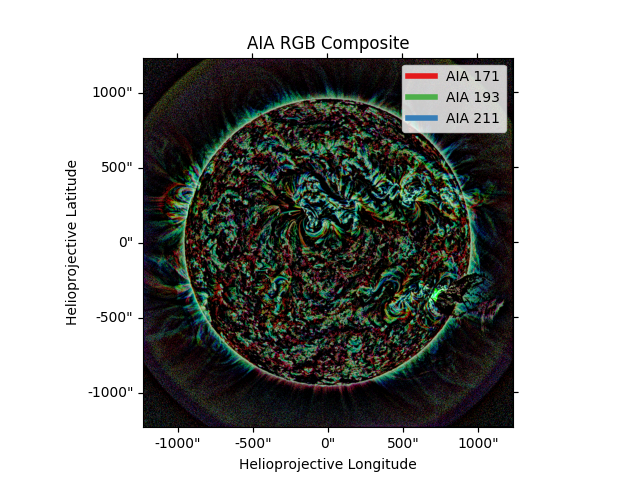
This example shows the process required to create an RGB composite image of three AIA images at different wavelengths. To read more about the algorithm used in this example, see this Astropy tutorial.
import matplotlib.pyplot as plt
from matplotlib.lines import Line2D

from astropy.visualization import make_lupton_rgb

import sunpy.data.sample
from sunpy.map import Map

from sunkit_image.enhance import mgn
We will use three AIA images from the sample data at the following wavelengths: 171, 193, and 211 Angstroms. The 171 image shows the quiet solar corona, 193 shows a hotter region of the corona, and 211 shows active magnetic regions in the corona.
maps = Map(sunpy.data.sample.AIA_171_IMAGE, sunpy.data.sample.AIA_193_IMAGE, sunpy.data.sample.AIA_211_IMAGE)
/home/docs/checkouts/readthedocs.org/user_builds/sunkit-image/conda/stable/lib/python3.12/site-packages/astropy/io/fits/hdu/image.py:610: VerifyWarning: Invalid 'BLANK' keyword in header.  The 'BLANK' keyword is only applicable to integer data, and will be ignored in this HDU.
  warnings.warn(msg, VerifyWarning)
Before the images are assigned colors and combined, they need to be
normalized so that features in each wavelength are visible in the combined
image. We will apply multi-scale Gaussian normalization using
sunkit_image.enhance.mgn to each map and then create the rgb composite.
The k parameter is a scaling factor applied to the normalized image. A
value of 5 produces sharper details in the transformed image. In the
make_lupton_rgb function, Q is a softening
parameter which we set to 0 and stretch controls the linear stretch
applied to the combined image.
maps_mgn = [mgn(m, k=5) for m in maps]
# The `~astropy.visualization.make_lupton_rgb` function takes three 2D arrays
# so we need to pass the data attribute of each map.
im_rgb = make_lupton_rgb(maps_mgn[0].data, maps_mgn[1].data, maps_mgn[2].data, Q=0, stretch=1)
The output of the astropy.visualization.make_lupton_rgb algorithm is not
a Map, but instead an image. So, we need to create a WCS Axes using one of
original maps and manually set the label. In the first step below, we grab
the Set1 qualitative colormap to apply to the custom legend lines.
cmap = plt.cm.Set1
custom_lines = [
    Line2D([0], [0], color=cmap(0), lw=4),
    Line2D([0], [0], color=cmap(2), lw=4),
    Line2D([0], [0], color=cmap(1), lw=4),
]

fig = plt.figure(figsize=(15, 15))

ax = fig.add_subplot(111, projection=maps[0].wcs)
im = ax.imshow(im_rgb)
lon, lat = ax.coords
lon.set_axislabel("Helioprojective Longitude")
lat.set_axislabel("Helioprojective Latitude")
ax.legend(custom_lines, ["AIA 171", "AIA 193", "AIA 211"])
ax.set_title("AIA RGB Composite")

fig.tight_layout()

plt.show()
Total running time of the script: (0 minutes 3.626 seconds)